
How to Replace the Fan on the Vista 10W/20W Laser Module
Overview
This article explains how to replace the fan on the WeCreat Vista 20W laser module. Replace the fan if it is not working properly, making abnormal noises, or affecting the cooling performance.
Note:
Before replacing the fan, check the fan cable connection first and confirm that the issue is caused by the fan.
Before Starting
Safety Instructions
Before replacing the fan:
- Turn off the machine.
- Disconnect the power cable.
- Wait until the laser module has completely cooled down.
- Work on a clean and stable surface.
Note:
Do not operate or replace components while the machine is powered on.
Required Tools
- Replacement fan for Vista 20W laser module
- Screwdriver
Remove the Old Fan
Step 1:
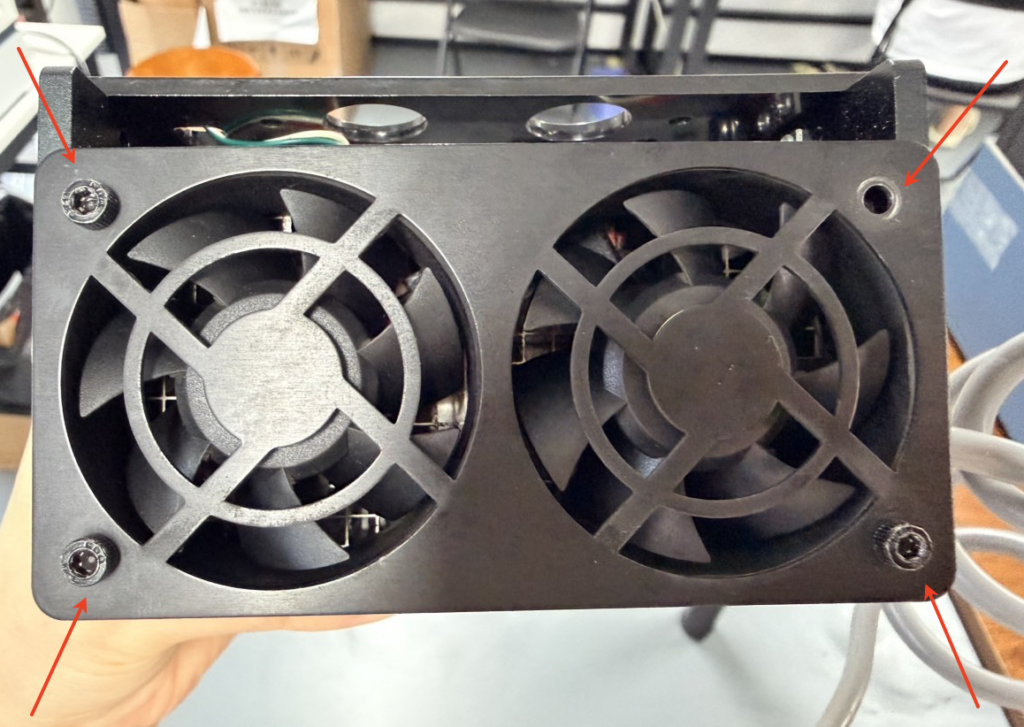
Use a Screwdriver to remove the four screws securing the fan cover. Carefully remove the cover and take out the fan assembly. Avoid pulling on the fan cable during removal.
Step 2:
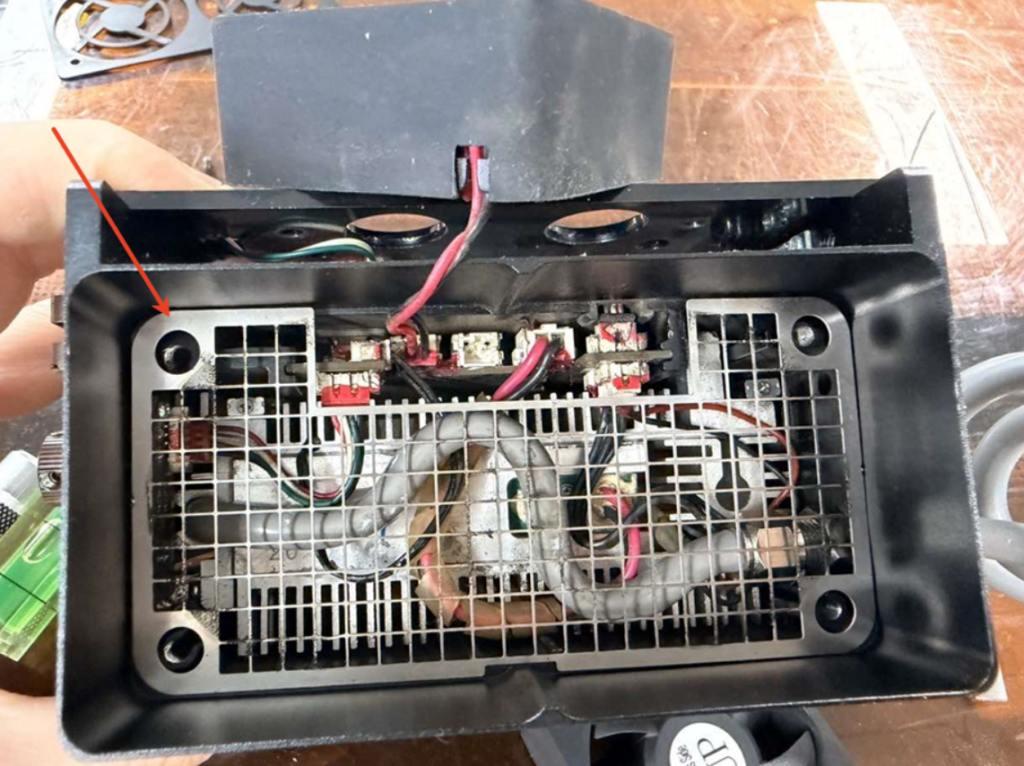
Remove the fan guard. No tools are required; simply take it out.
Step 3:
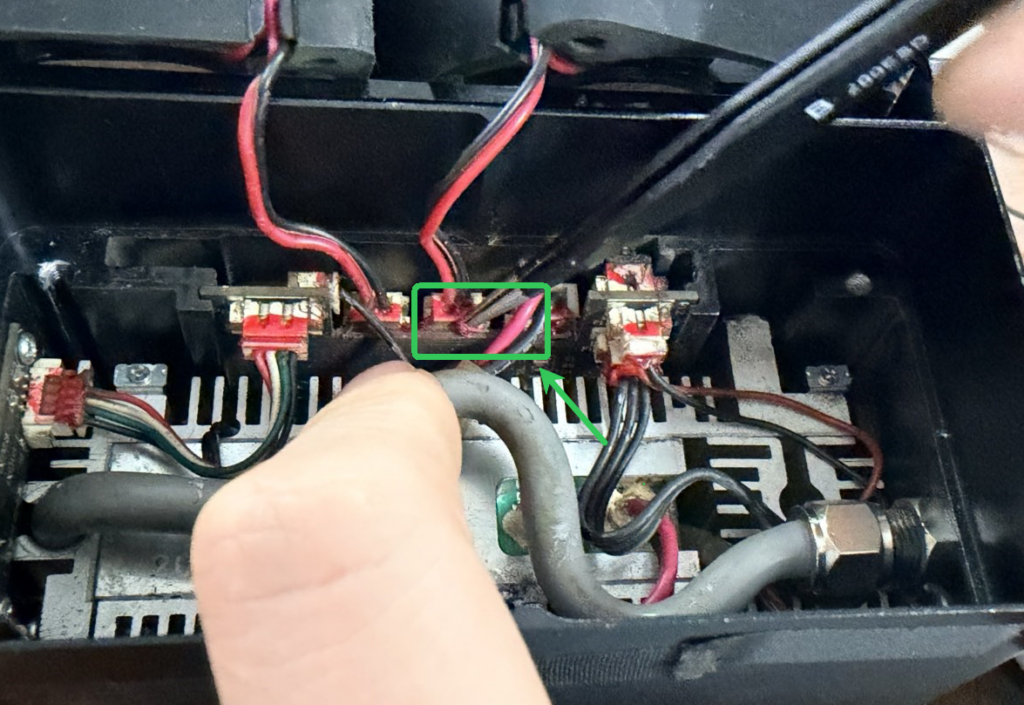
Remove the adhesive securing the fan connector.
Use tweezers or a similar fine-tip tool to carefully remove the adhesive around the fan connector that needs to be replaced. Be careful not to damage the connector or wires during removal.
Step 4:
Unplug the cable from the laser head, then remove the fan.
Install the New Fan
Install the new fan by following the removal steps in reverse order. Make sure the fan cable is connected securely and the fan is installed in the correct direction.
Test After Replacement
- After installing the new fan:
- Open WeCreat MakeIt software and connect your machine.
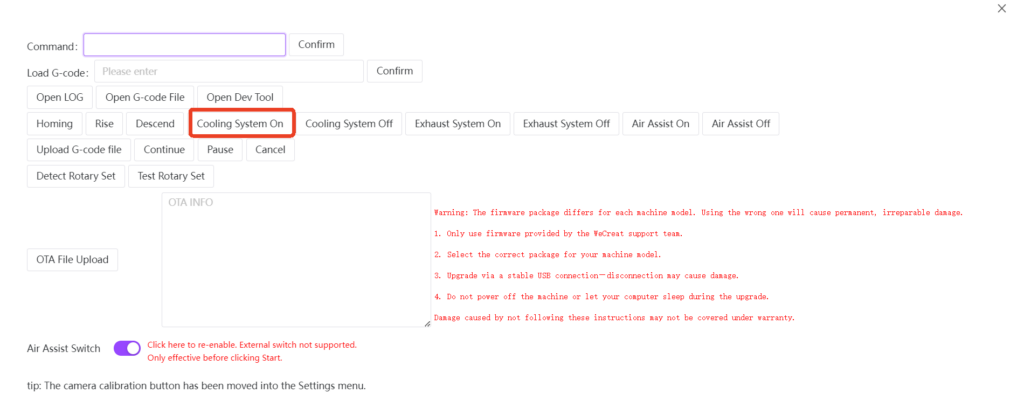
- Enter the Debug Panel by pressing Ctrl + Shift + P (Windows) or Command + Shift + P (Mac).
- Click “Cooling System On” to activate the fan.
- Confirm that the exhaust fan starts running normally.
- Check
- Fan rotates smoothly
- No abnormal noise
- No overheating warning
Troubleshooting After Replacement
The Exhaust Fan Does Not Spin After Replacement
Please check:
- Whether the exhaust fan cable is connected properly.
- Whether the fan connector is fully inserted and securely connected.
- Whether the replacement fan is installed correctly.
Weak Smoke Extraction Performance
Please check:
- Whether the exhaust hose is connected properly.
- Whether the exhaust path is blocked.
- Whether the exhaust fan is installed in the correct direction.
Contact Wecreat support
If the issue persists, please contact WeCreat Support and provide:
- Machine model
- Machine SN
- Software version
- Firmware version
- A video showing the issue and the machine status