
What Should I Do If My WeCreat Laser Machine Cannot Connect via USB?
If your machine cannot connect to your computer via USB, please try the following steps:
- Try a Different USB Port
Switch to another USB port on your computer. The current USB port may not be functioning properly. - Check Your USB-C Adapter
If you are using a USB-C adapter, please check whether the adapter is working properly. If possible, try connecting without the adapter or use a different adapter. - Remove Any USB Hub or Extension
If you are using a USB hub, USB splitter, or extension cable, please remove it and connect the USB cable directly to your computer’s USB port. - Try a Different USB Cable
Try using another compatible USB cable, such as one from another machine or printer, to test the connection. This can help determine whether the original USB cable is causing the issue.
If it is a Mac with macOS 15 or above, please try the following steps to resolve the problem:
- Disable the firewall, then restart your Mac and check if the firewall is off before reconnection
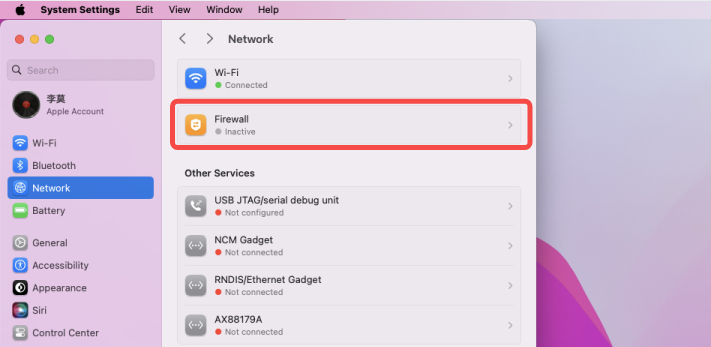
- Turn off the VPN if have
- Disable and re-enable the local network.
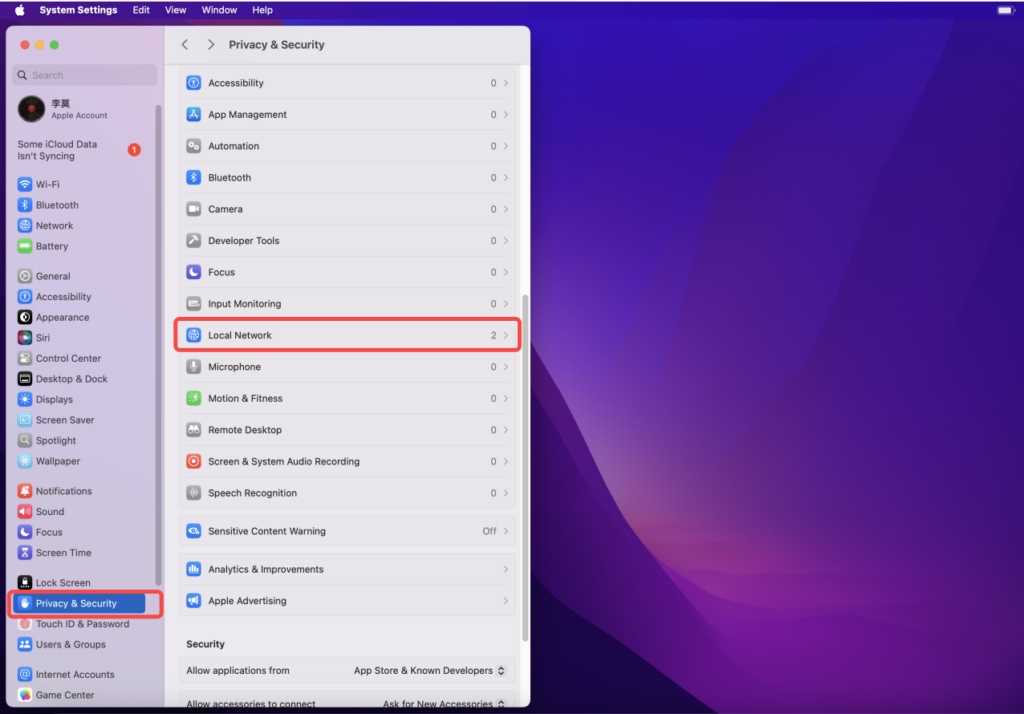
- Try connecting via USB to see if it works
If it is a laptop running windows operating system, please try the following steps to resolve the problem:
- Check for Norton Antivirus:
If your computer has Norton installed, please uninstall it and restart your computer. - Check for Security Suite:
Microsoft Security Suite may block the website as a harmful site. Please turn off the protection and try again. - Disable Any Antivirus Software:
If you are using any other antivirus software, try temporarily disabling it and then check whether the USB can be recognized.
- Update Driver Manually:
Open Device Manager and check whether the USB device has been detected.If it is recognized as ‘Unknown USB device’, please right-click USB device in Device Manager and update the driver manually. Here is the way to browse your computer and locate the USB driver package.- On your computer desktop, locate the MakeIt icon.
- Right-click the icon and select “Open file location.”
- Open the “Resource” folder.
- Go to driver > win > rndis.
- Based on your computer system, choose the correct version:
- For a 64-bit system, select X64
- For a 32-bit system, select X86
Alternatively, click the button below to download the USB driver package and install it manually through Device Manager.